
You capture the world.Make it feel like you.
AI assistance for editing, color and sound. From the first shot to the final frame, the creative decisions stay yours.
macOS downloads available
Give every frame a direction.
- 01The original moment
- 02Find the tone
- 03Build the sequence
Every frame. A different feeling.
Explore color

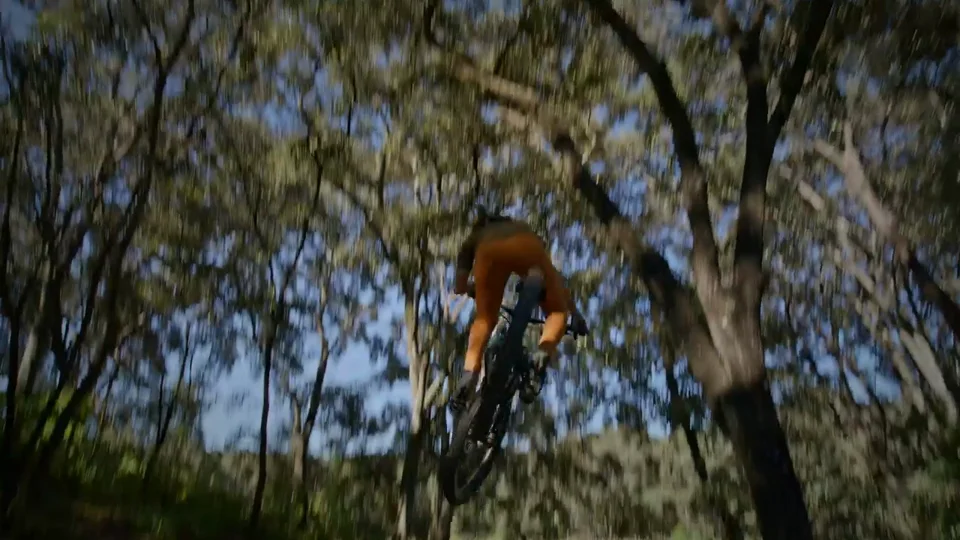
The same light.A different feeling.
Cooler. Warmer. Let color follow the story.
Lower saturation. Let cooler tones and contrast lead.
 CoolOriginal
Describe. Review.Decide what stays.
From the first imported shot to your exported files.
5 steps · Swipe to explore
Start with what you captured.
Add local video to a project. Keep your original footage and build a timeline around your shots.
Footage and local rendering are handled in the desktop app.
Make the idea specific.
Shorten the opening, soften the window highlights or keep the location sound. Tell your creative assistant what to change and what to preserve.
Suggestions use the current project and permitted media context.
Choose what deserves to stay.
Review proposed editing, color and sound changes before applying them. Revisit versions and undo changes when needed.
Check both the plan and its actual result against your own footage.
Let the picture guide you.
Check rhythm, picture and original sound in the preview and timeline. Describe the next adjustment and refine your work.
Preview and supported adjustments depend on the current desktop version.
Make the finished film yours.
Choose an available export format. Render video and a file manifest locally, then locate your files or open review sharing.
Available formats depend on your plan and the current app version.
Originals stay local.Sharing is your choice.
Local processing, cloud suggestions and review sharing are separate steps. Know what information each one uses.
- Originals and rendering
- The standard creative workflow uses local originals and handles preview, rendering and encoding on your computer.
- AI and sync
- Cloud AI uses prompts and permitted project context. Account, project summary and template sync depend on the configured services.
- Sharing by choice
- Review sharing is a separate action. Check the content and expiry before uploading and creating a link.
Before youget started.
Is FrameTone a text-to-video generator?
Can I edit videos on this website?
Does AI decide the final look?
Will my originals be uploaded?
Which versions can I download now?
Your next film starts with your footage.
Check desktop release availability and find the right plan for your work.
macOS downloads available